Documentation
SpreadB Docs
Everything you need to build, manage, and grow on the SpreadB influencer marketing platform.
Installation›Install on iOS
Everything you need to build, manage, and grow on the SpreadB influencer marketing platform.
Learn how to download, install, and set up the SpreadB mobile application on your iPhone or iPad.
The SpreadB iOS app allows Brand Owners and Influencers to manage campaigns, communicate securely, receive real-time notifications, track earnings, and access their accounts from anywhere. The application is optimized for the latest iPhone and iPad devices, providing a smooth, secure, and high-performance experience.
Ensure your device meets the following requirements before installing the application.
| Requirement | Minimum Specification |
|---|---|
| iOS Version | iOS 15.0 or later |
| Device | iPhone or iPad |
| Storage | At least 250 MB available |
| Internet | Wi-Fi or Mobile Data |
| Apple ID | Required for App Store downloads |
SpreadB can be installed using one of the following methods:
Launch the App Store on your iPhone or iPad.
Search for "SpreadB".
Tap the Get button on the official SpreadB app listing.
Confirm using Face ID, Touch ID, or your Apple ID password.
Wait for the download and installation to complete.
Tap Open to launch the application.
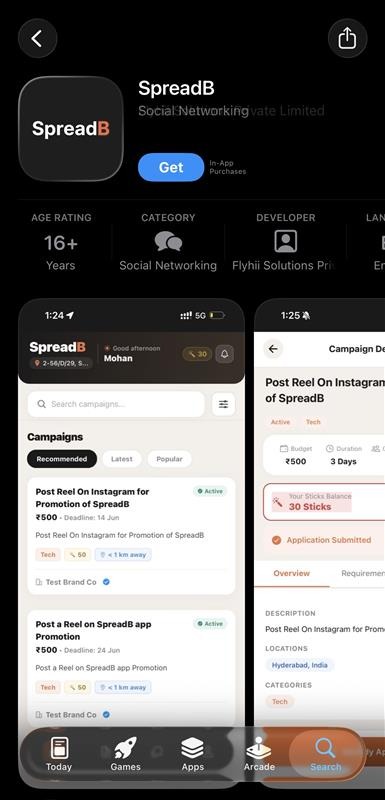 SpreadB listing on the Apple App Store
If you have been invited to test a pre-release version of SpreadB:
Install the TestFlight app from the App Store.
Open the invitation link sent to you by the SpreadB team.
Accept the invitation for the SpreadB beta.
Tap Install to download the beta build.
Launch SpreadB directly from TestFlight or your home screen.
When opening SpreadB for the first time, you'll be presented with the welcome screen. From here you can:
To provide the best experience, SpreadB requests the following permissions on iOS:
| Permission | Purpose |
|---|---|
| Notifications | Receive instant alerts for campaign invitations, messages, and payouts |
| Camera | Capture photos and upload content for active campaigns |
| Photos | Select screenshots, images, and videos from your photo library |
| Location (Optional) | Discover campaigns nearby and improve matching recommendations |
| Files | Upload documents, signature agreements, and contracts |
Note: You can adjust or revoke these permissions at any time through iOS Settings > Privacy & Security.
If you already have a verified SpreadB account:
Open the SpreadB application.
Select Sign In on the welcome screen.
Enter your registered email address and secure password.
Complete email OTP verification if prompted by security.
Access your specific role dashboard.
If you're new to the SpreadB platform:
Notifications help you stay informed about important updates. To enable notifications on iOS:
Open the Settings app on your iPhone or iPad.
Tap Notifications and scroll down to locate SpreadB.
Toggle on "Allow Notifications" and choose your alert style.
To ensure the best performance and security, periodically check for updates:
Alternatively, enable automatic iOS updates under Settings > App Store > App Updates > Enable Automatic Downloads.
Verify that your device is running iOS 15.0 or later and has at least 250MB of free space. Make sure you are signed in with a valid Apple ID and have a stable cellular or Wi-Fi network connection.
Restart your iPhone or iPad. Ensure that both iOS and the SpreadB app are updated to the latest versions. If the issue persists, delete and reinstall the app.
Confirm that your email address and password are correct. Make sure your account has been verified via OTP. Use the Forgot Password link to trigger a password reset if necessary.
Check your Spam and Junk email folders. Ensure your registered email is correct. Wait a few minutes and tap Resend OTP on the sign-in/verification screen.
Now that SpreadB is installed on your iPhone, continue with the next guide: